How to batch resize images without changing their proportions
By Sekora Studios · Updated
To batch resize images, choose your files in Batch Resize, set maximum dimensions or a percentage, then download the results. Each image keeps its own proportions. A shared width and height limit does not make every output the same size.
Steps
- Open Batch Resize and choose JPG, PNG or WebP images. Wait for the file checks to finish.
- Review the list and select the images to process. Each free batch handles up to five eligible images; Premium allows up to 100.
- Choose Fit within and enter Maximum width and Maximum height, or choose Percentage and enter the scale.
- Choose an output format. Select "Keep each original format" to export each resized copy in its source format.
- Select Resize, then check the dimensions shown for each completed result. Download a result individually or choose Download ZIP for the completed images.
Downloaded example
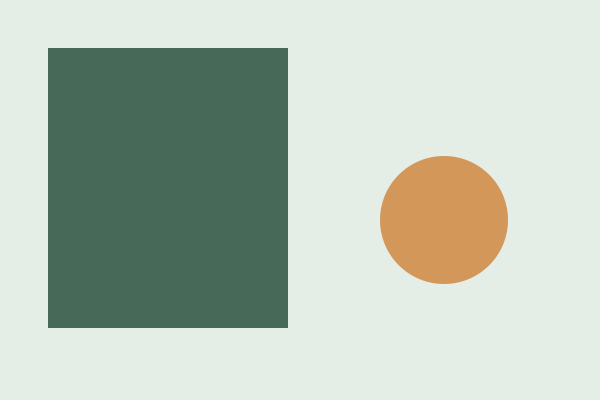


These original illustrations were exported from Batch Resize with a 600 × 600 Fit within setting. The smaller source kept its dimensions.
Fit within keeps the whole image
Fit within treats the width and height as upper limits. The tool reduces each image until it fits inside both limits, keeps its aspect ratio and adds no padding. It does not crop the edges or enlarge images that already fit.
For a 600 × 600 limit, a 1200 × 800 landscape becomes 600 × 400. An 800 × 1200 portrait becomes 400 × 600. A 300 × 200 image stays 300 × 200. Choose the single-image resize tool if you need a fixed canvas with cropping or padding.
Percentage applies the same scale to every file
At 50%, each image has half its original width and half its original height, with dimensions rounded to whole pixels. A 1200 × 800 image becomes 600 × 400, while a 600 × 600 square becomes 300 × 300.
A percentage above 100 enlarges the image. Use Fit within when smaller images should stay at their original dimensions.
Choose the format before processing
"Keep each original format" keeps JPG as JPG, PNG as PNG and WebP as WebP. Selecting one output format applies it to the whole selected batch. Transparent areas become white in JPG. Use PNG or WebP when the output needs transparency.
Resizing sets pixel dimensions. If an upload form also asks for a file-size target in KB, use Batch Compress after resizing.
Save completed results before starting again
Download a completed result individually or save the completed images together as a ZIP. Files that fail remain in the list so you can identify them.
Changing settings does not update earlier results. Save the files you want before starting another batch.
More questions
Can batch resize make every image exactly 600 × 600?
Fit within does not create a fixed square canvas. It keeps each image's shape within the 600 × 600 limit. Use the single-image crop or square-image tool when you need to change the shape.
Can I batch resize HEIC photos?
Batch Resize accepts JPG, PNG and WebP. With Premium, convert HEIC photos in Batch Convert first, then add the converted files here. For one photo, use the free HEIC-to-JPG tool.
Can I use batch resize on my phone?
Yes, in a modern mobile browser. Keep the tab open, start with a small batch and use the browser's download controls to save the images or ZIP.